- Log into the RCUH Financial Portal.
- Hover over your name in the upper-right corner of the screen.
- Click on “Edit My Profile”.
- Locate the Delegation section and click to expand the section.
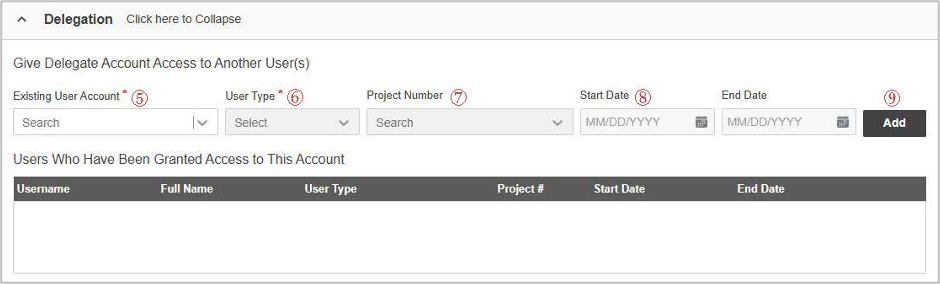
- Under “Existing User Account”, type the name of the user you wish to delegate access to. When their name appears in the dropdown list, select it.
- For “User Type”, choose the user type that you wish to grant to the delegated user. Please note that the online delegation process gives the delegated user the same level of access as the person delegating, including access to RCUH Payroll Reports.
- To grant access to specific project accounts, enter the project number.
If left blank, the delegated user will receive access to all projects assigned to you. - To grant access for a defined period, enter the Start Date and End Date.
If left blank, the delegated user will have access without a time limitation. - Click “Add” to apply the delegation.
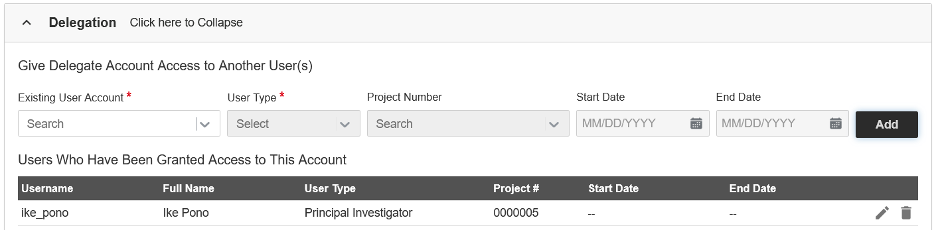
The delegated user will appear under “Users Who Have Been Granted Access to This Account”. - Scroll to the bottom of the “Edit My Profile” page and click Save.
- To remove a delegated user from your account, return the Delegation section “Users Who Have Been Granted Access to This Account” and click on the ‘Trash Can’ icon for the delegated user.
Please note that delegation permissions vary by user type:
Secondary User (SU) may delegate access only to another SU.
Principal Investigator (PI) may delegate access to a SU or another PI.
Fiscal Administrator (FA) may delegate access only to another FA.
Was this article helpful?
That’s Great!
Thank you for your feedback
Sorry! We couldn't be helpful
Thank you for your feedback
Feedback sent
We appreciate your effort and will try to fix the article